How to Send Location on Google Maps: A Step-by-Step Guide
A colleague is waiting outside the wrong entrance, a driver needs the pickup point, and the message thread contains an address that could mean either branch. Sending a location should remove that ambiguity, not expose someone's movements for longer than necessary.
Knowing how to send location on Google Maps starts with choosing the right kind of share. A fixed pin answers “Where's the meeting point?” Live location answers “Where's the person now?” Those aren't interchangeable, especially when permissions, privacy or poor connectivity enter the picture.
Table of Contents
- Choose the Right Way to Share Your Location
- Share Live Location and Control Who Sees It
- How to Share a Place, Route or Embed from Desktop
- Sending Your Location Without Cellular Service
- Fixing Links, Permissions and Wrong Pins
- When Location Sharing Belongs in a Client Build
Choose the Right Way to Share Your Location
Google Maps offers several sharing methods, and the right choice depends on whether the location needs to move after sending. Use the least revealing method that solves the coordination problem.
A business entrance doesn't need a live feed. A colleague walking toward a pickup point might. A website visitor needs a published destination, not an employee's changing position.
Google Maps sharing methods compared
| Method | Who sees it | Updates after sending | Needs internet | Best for |
|---|---|---|---|---|
| Live location (mobile app) | Contacts selected by the sender | Continuous until the time limit ends or the sender stops it | Yes | Meeting up, trips, arrival times |
| Place or pin link | Anyone receiving the link | None, fixed point | Recipient needs connectivity to open the link | Business, meeting point, dropped pin |
| Directions link (Share) | Anyone receiving the link | None, fixed route reference | Recipient needs connectivity to open the link | Sending a route to a destination |
| Embedded map (desktop) | Visitors to the web page | None, fixed map reference | Yes | Showing a location on a website |
| Satellite update (offline) | Contacts selected by the sender | Location updates while Maps is offline | Ordinary internet isn't required on eligible Android devices | Travel and low-coverage areas |
This comparison follows Google's support documentation for the workflows below. The satellite option applies only to eligible Android devices in supported regions, not every phone with GPS.
Practical rule: Share a person's position only when the recipient needs to follow that person. Otherwise, send the destination.
The distinction also matters for agency and enterprise delivery. An appointment confirmation can contain a place link; a branch page can contain an embedded map. Neither requires collecting a customer's live location.
Before selecting a method, define the actual destination. A building's postal address, vehicle entrance and pedestrian meeting point can describe different places. Choosing the correct sharing feature won't repair an incorrectly chosen destination.
Share Live Location and Control Who Sees It
If someone needs to find a moving passenger, share a live position with that person and set an end time. On Android, start the share in the Google Maps mobile app, choose the recipient and duration, then stop access when coordination is over. The stop control matters as much as the initial Share button.
Google's Android Location Sharing guide lists the requirements: a Google Account, a mobile device, an active internet connection and the device's Use location setting enabled. These steps apply to Android. The iPhone workflow differs and is not covered here.
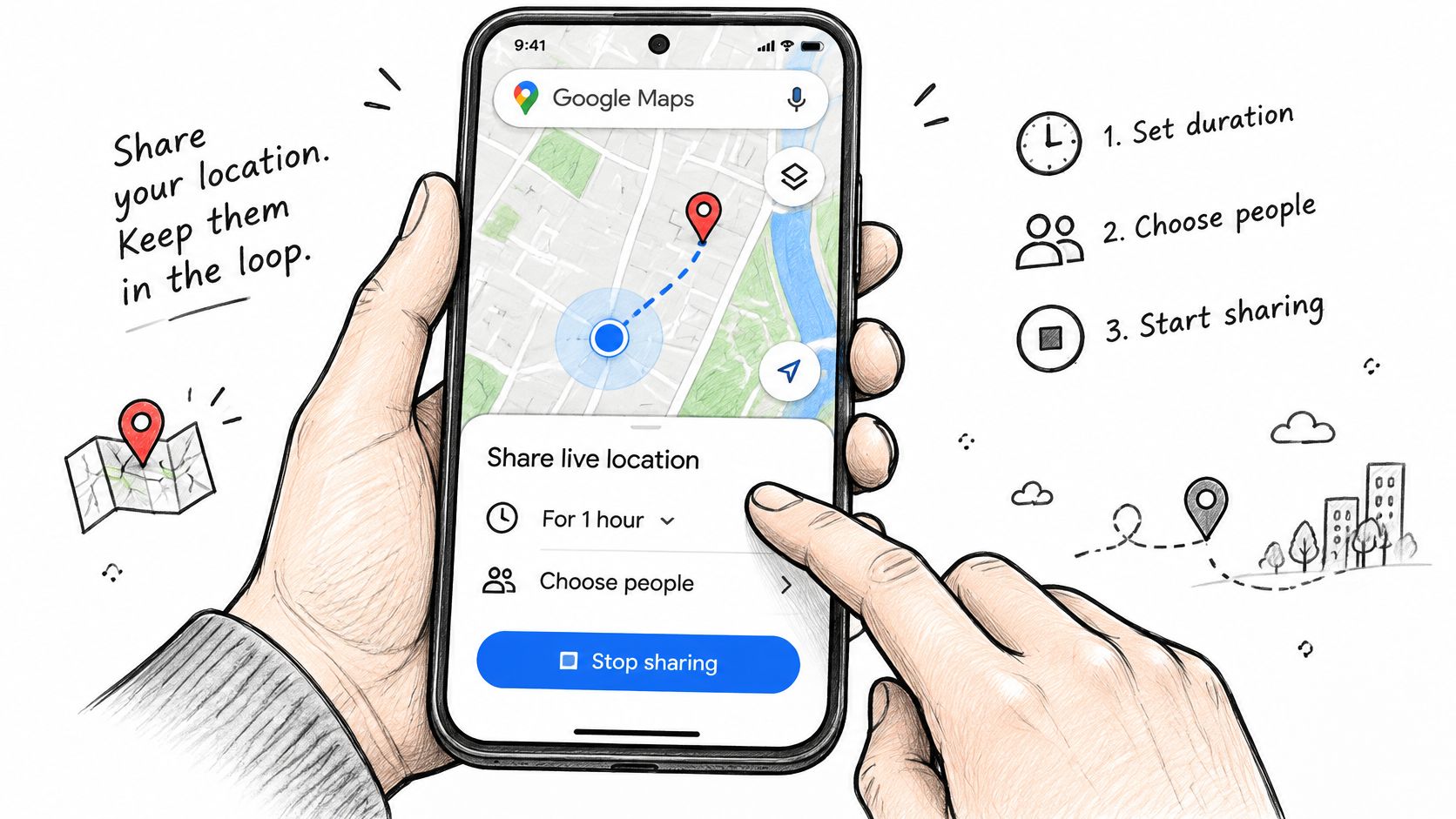
Start the share deliberately
Sign in to the intended Google Account. Location sharing is tied to the account, not just the phone. If the device has work and personal accounts, check the active profile first. The wrong account can make expected contacts or existing shares difficult to find.
Turn on the device's Use location setting. Maps needs the phone's position to share it. Opening the app or seeing a map does not confirm that device location is enabled.
Open Google Maps and tap the profile picture or initial. The account menu contains the sharing controls. Avoid choosing a place on the map and opening its Share menu, which sends a destination rather than a moving position.
Select Location sharing, then New share. Check that the screen is for sharing the sender's location. A business listing or dropped pin is a fixed place, not a live share.
Set the sharing duration. A time-limited share fits an appointment, journey or pickup. Google also allows Until you turn this off when sharing directly with a person who has a Google Account. Choose that option only when ongoing access is intended.
Select the recipient and verify the identity. Check the account or contact details, not only the display name. Similar names and outdated contact entries can expose a position to the wrong person.
Tap Share. Selecting a recipient does not complete the process. Return to the sharing screen and confirm that the intended person appears.
Confirm delivery and retain control
Ask the recipient to open the share and confirm that the pin matches the sender's expected location. As the sender moves, the recipient should see the position update while the connection and location access remain available. Message delivery alone does not prove the recipient opened the live share.
For an airport collection, arrange the pickup separately from live coordination. Airport Vans NYC's guide to booking a private van at JFK can help organize the pickup; a temporary location share can help the agreed recipient find the passenger as the meeting approaches.
Keep the audience intentional. Select recipients individually where direct account sharing is available. A sharing link posted in a group conversation or forwarded to others can reach people beyond the intended recipient.
Turning off Timeline isn't a substitute for stopping a live share.
Google treats Timeline and Location Sharing separately. Timeline concerns location history, while Location Sharing communicates the current or updating position. Sharing can work with Timeline turned off.
To end access, return to Location sharing, select the relevant person and stop the share. Closing Maps does not end it.
Review active shares periodically, especially after business travel or temporary coordination. Remove access that no longer has a clear purpose, and set an expiry time when sharing only needs to last for a journey.
How to Share a Place, Route or Embed from Desktop
When an appointment email needs a clear meeting point, share a fixed place or route from a computer. Desktop Maps is suited to destinations, directions and website maps, while live location sharing starts on mobile. A desktop map link is usually the cleaner choice for appointment emails and client websites.
To create one, open Google Maps, select Directions, enter the starting point and destination, choose the route, then select Share. Google's desktop map-sharing documentation describes options to send or copy a link and to get embeddable HTML for a webpage.
Choose the output for its audience
For an email or message, send a link. The recipient can open the destination or route, but the link does not provide continuing updates from the sender's device. That makes it useful for a fixed meeting point, not for tracking someone who is moving.
For a public branch page, embed the map when visitors need to see it within the page. Add the branch name, written address and relevant entrance instructions nearby. A marker alone may not make the correct entrance clear.
Desktop also has workflow limits. Real-time sharing must start on mobile, though people and sharing settings can be managed from a computer. Directions sent directly to a phone or tablet don't support multiple destinations. For a multi-stop itinerary, use a shared link or another suitable delivery method.
Before sending or publishing, check the details:
- Confirm endpoints. Verify the start and destination, including the correct branch or entrance.
- Inspect the route. Review the selected journey before copying or sending the link. For a driver, check the route against live traffic in Maps before sending it.
- Check visibility. Embed the map only if the destination should be visible to everyone who can access the page.
A route link communicates the journey you selected when sharing it. It should not be treated as a guarantee that the route will remain unchanged.
Sending Your Location Without Cellular Service
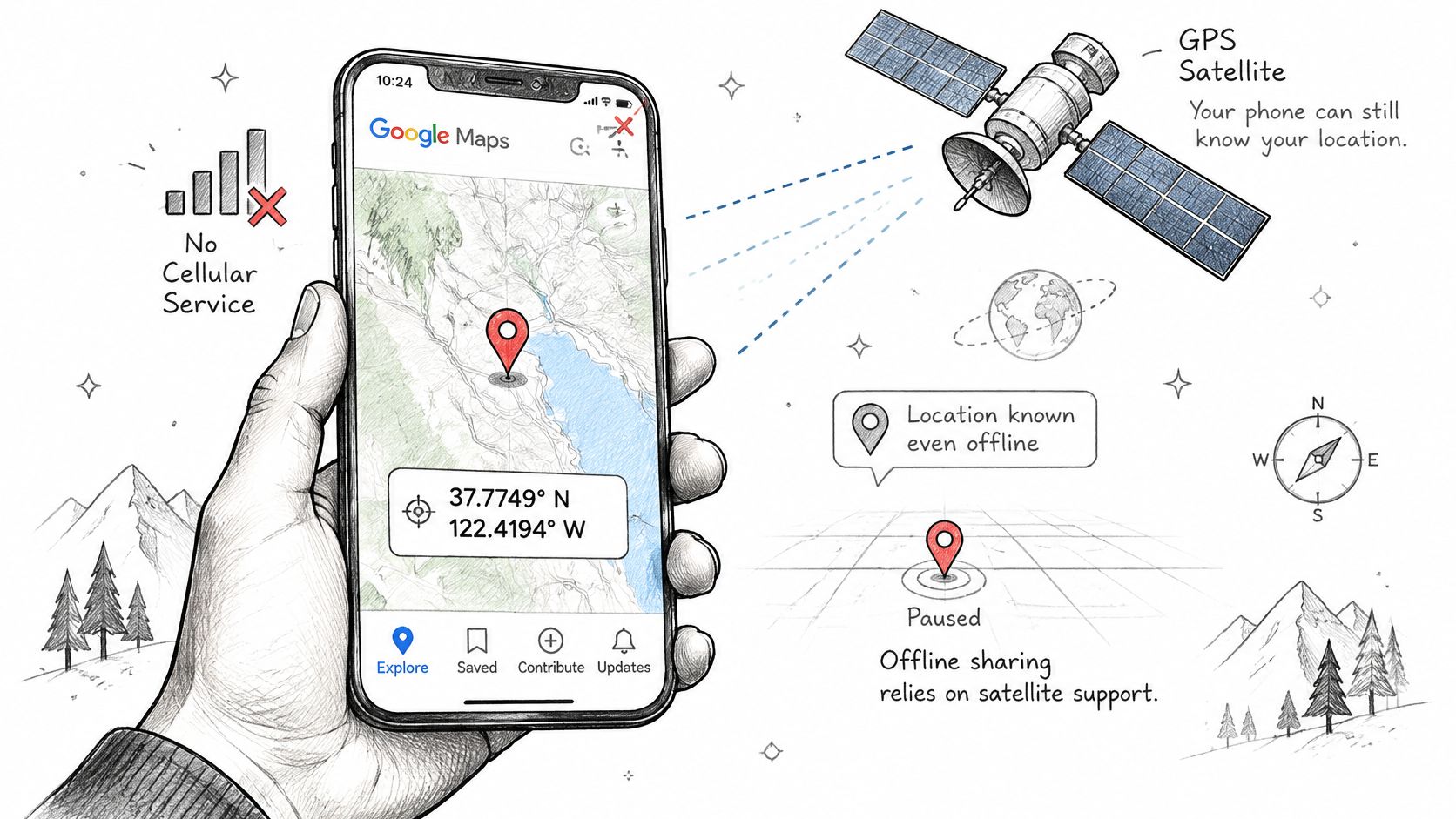
On a remote route, your phone may show a precise position while the recipient still has no update. GPS positioning and location delivery are separate functions. A GPS fix on screen shows your position on your device. The recipient sees it only after the update is delivered.
Ordinary live sharing requires internet access. Eligible Android users may have a satellite option, subject to compatible hardware, supported regions and conditions such as a clear view of the sky, as described in Google's satellite location-sharing documentation.
Follow the connection decision path
- For a fixed destination, prepare a pin. Send it when a connection becomes available. Repeated live-sharing attempts won't help if the recipient needs only a meeting point.
- With stable connectivity, use ordinary live sharing. Choose it when someone needs to follow a moving person.
- When offline, check satellite eligibility first. If the device or region is unsupported, changing ordinary sharing settings won't provide a satellite connection.
- Check location access and Maps permissions. Then check battery level and whether the sky is visible. These checks help distinguish a permissions issue from a coverage limitation.
Satellite sharing depends on device support, location and environmental conditions, so it may not be available when cellular service is absent. A visible GPS position alone cannot deliver an update to the recipient.
For international travel, use Simsima's guide to estimate your navigation app's data needs when planning connectivity. Data use and satellite eligibility are separate considerations.
Field teams and outdoor workers should check the actual phone, permissions and recipient workflow before deployment. Confirming support during preparation leaves more options than discovering a limitation during an incident.
Fixing Links, Permissions and Wrong Pins
When a recipient can't open a location, first check whether the share expired or was stopped, then check the connection and opening app. A broken link and a wrong destination require different fixes.
Google's location and map-sharing guidance distinguishes fixed map references from live sharing and documents the mobile workflow. For a fixed point, search for the place or press and hold to drop a pin, tap the place name or address at the bottom, select Share, and choose the messaging or email application.
Location sharing symptoms, causes and fixes
| Symptom | Likely cause | Fix |
|---|---|---|
| Recipient cannot open the link | Link has expired | Send a new share with a longer duration |
| Recipient cannot open the link | Sender turned sharing off | Restart sharing from Location sharing in Google Maps |
| Recipient cannot open the link | Location services or internet unavailable on either device | Confirm connectivity and required location services, then retry |
| Recipient cannot open the link | Opened in an unsupported browser or app | Open the link in a browser or a Maps-compatible app |
| Live location not updating | Use location is off on the sender device | Turn on device location and confirm the intended Google Account is signed in |
| Live location not updating | Maps lacks location or contacts permission | Grant the required location and contact access in device settings |
| Pin points to the wrong place | Similar business name or duplicate street name | Check the name, address and map position before sending |
| Live sharing option missing on desktop | Real-time sharing starts only on mobile | Start the share on a phone and manage it from a computer |
Check the destination before troubleshooting delivery
An accessible link can still point to the wrong place. Inspect the preview's place name, street address and map position, particularly when a business has multiple branches.
For navigation, share the destination or use Share directions rather than copying an address alone. That preserves more useful journey context.
For a planned transfer, Unique Private Transportation's explanation can help coordinators explore direct pickup and drop-off services and clarify the endpoints before sending them. Transport arrangements still need an agreed meeting point; a map link doesn't establish that agreement by itself.
When Location Sharing Belongs in a Client Build
A shared Google Maps link can help people coordinate, but a client site or portal may need a workflow with defined access and responsibilities. A store finder, field-service dispatch screen and multi-branch routing workflow serve different users, so each needs its own scope.
Scope the workflow before selecting the integration
Start with the operational need. A branch directory may require only maintained addresses; a staff portal may need authenticated access to an external location service. Decide who provides location information, who can view it and how long it remains available.
- Define access. Distinguish public destinations from information limited to customers, staff or dispatchers.
- Define freshness. Decide whether users need a fixed reference, a recent update or ongoing transmission.
- Define failure handling. Specify what users see if permission is denied, connectivity drops or a position becomes stale.
Also identify which system owns each record and who handles consent, retention and access controls. An API connection can carry location data, while those responsibilities still need to be defined as part of the workflow.
For teams considering WebinOne, the REST API endpoints overview can inform integration planning. The platform provides a managed environment for building digital experiences, but the location workflow still needs its own requirements and implementation decisions.
A fixed map may be enough. Choose a custom live-location feature only when the workflow requires continuing updates, and establish its audience, data flow and operational responsibilities before the build begins.