Agency Portal Login: How to Sign in and Fix Access
A client needs an urgent update, the agency portal login keeps failing, and the administrator who enrolled the authenticator has left. The password reset reaches an unattended inbox. Suddenly, a routine edit depends on recovering control of the agency's entire client portfolio.
That's a continuity problem, not just a forgotten password. A workable access plan needs a reliable sign-in route, named roles, a clear support path and a recovery test before anyone needs it in an emergency.
Table of Contents
- Find the Right Sign-In Page for Your Account
- How to Sign In Securely, Step by Step
- Fixing Login Failures, Lockouts and Missing Codes
- Set Up Roles Before Your Team Logs In
- Recover Access When the Admin Who Held It Leaves
- Set Up Your Agency Portal Through the Reseller Program
Find the Right Sign-In Page for Your Account
The WebinOne Portal login is at portal.WebinOne.co, and the partner login area is exclusive to WebinOne Partners. Agency staff should use the portal address their WebinOne team supplied, saved as a bookmark, rather than following an unexpected email link.
Start with the account type. An existing agency user needs the credentials attached to their own account, not a colleague's login. A client contact needs the correct client-facing route, which shouldn't be guessed from the agency's administrative address.
Login route by account type
| Account type | Entry point | First action |
|---|---|---|
| Existing partner or agency user | portal.WebinOne.co partner login | Sign in, complete MFA, open the dashboard |
| New user | Registration page | Register, then sign in to the WebinOne Portal |
| Client contact or site editor | Sign-in route confirmed by the WebinOne team | Confirm the assigned site and account email before attempting access |
New users who sign up on the Registration page get instant access to the WebinOne Portal. Staff joining an established agency should first ask the agency owner or administrator how their access should be assigned.
Before attempting sign-in, check:
- Address: Match the saved address against the original welcome details.
- Credentials: Confirm the account email and its associated password.
- Account level: Establish whether the agency uses a Partner or Partner Agency account.
Keep bookmarks labelled by business purpose. Agencies adding services such as Purple's identity-based WiFi revenue for resellers should distinguish those partner destinations from client-site administration. A partner portal for one service isn't an entry point to another.
How to Sign In Securely, Step by Step
For WebinOne agency access, a secure sign-in means reaching the correct dashboard with the correct identity, not just getting past a password field. Privileged users should prefer phishing-resistant authentication wherever the configured sign-in service supports it.
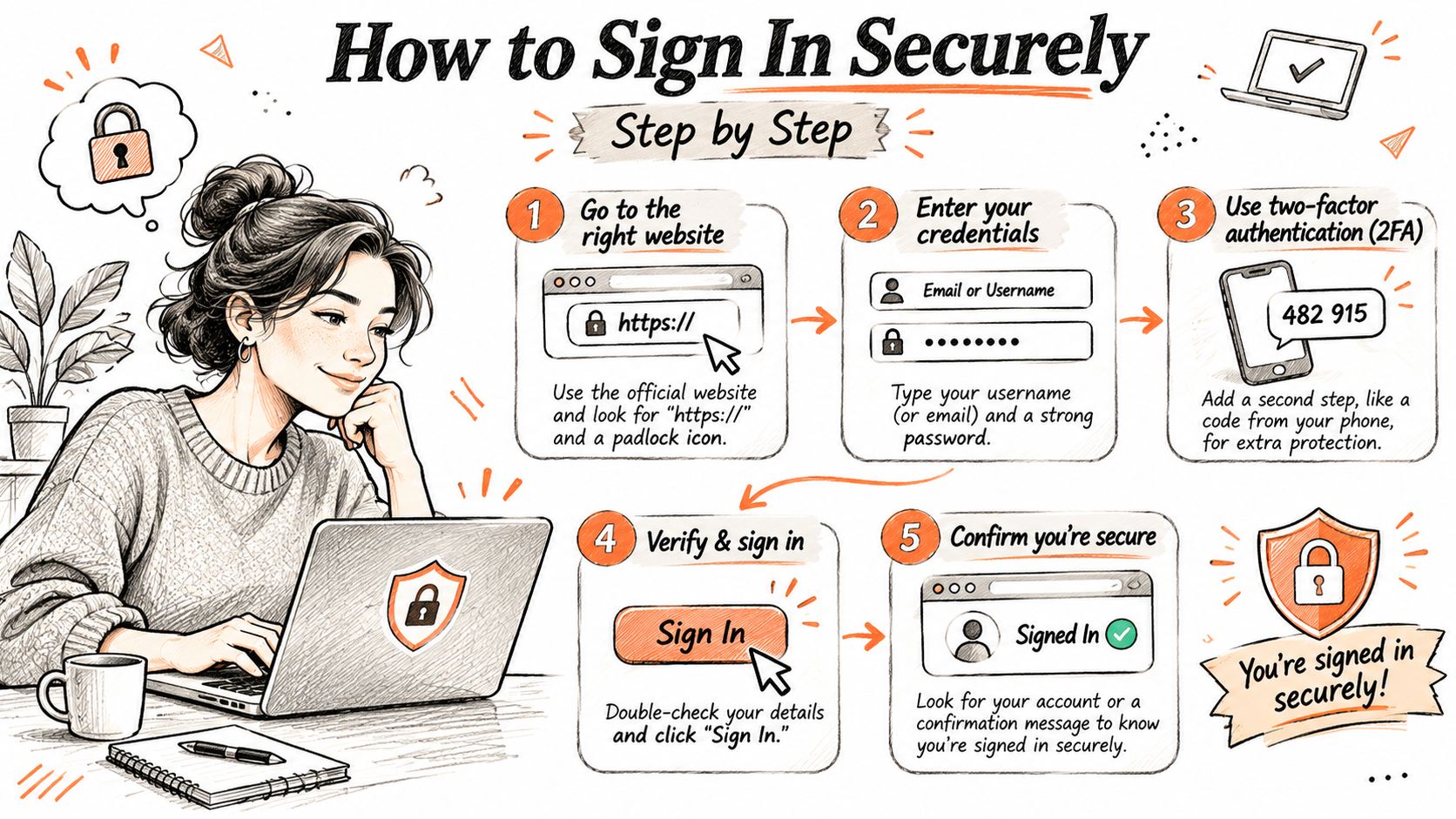
- Open the saved sign-in address. Use the verified bookmark or manually enter the address recorded during onboarding. An unexpected email asking for immediate authentication shouldn't replace that route.
- Enter the account email and password. Use personal credentials rather than a shared agency identity. If the page returns a generic failure, don't assume it confirms which credential was wrong.
- Complete the enrolled second factor. Prefer a passkey or security key where available. Don't approve an authentication request that wasn't initiated by the person signing in.
- Check the address before entering a code. Confirm that the address bar still matches the saved sign-in domain. Stop if the destination has changed unexpectedly.
- Verify the agency and role. Before opening a client site, confirm that the dashboard belongs to the intended agency and that access matches the assigned responsibilities.
- Sign out on shared machines. Explicit logout ends the working session rather than leaving access available until a timeout.
Why the second factor matters
CISA's phishing-resistant MFA guidance describes phishing-resistant MFA as the strongest form of MFA: cryptographic methods such as passkeys and security keys bind authentication to the legitimate service, while manually entered one-time codes don't provide equivalent protection against interception through an imitation page.
That distinction matters most when an account reaches multiple client environments or billing records. An authenticator code is useful, but it shouldn't be described as equivalent to phishing-resistant authentication.
Practical rule: A successful login isn't permission to open every client site. Check the agency context and assigned role before making changes.
For agencies documenting controls for client procurement, ISO Security's guide to proving information security compliance provides useful context. Record the authentication policy and evidence of its use, rather than treating an enabled MFA setting as the whole control.
Fixing Login Failures, Lockouts and Missing Codes
A failed sign-in can affect more than one person: if the agency's only administrator is locked out, access to client work may stall. Start by identifying whether the problem affects one account or several, then choose the recovery route that fits.
Login symptoms, causes and fixes
| Symptom | Likely cause | Fix |
|---|---|---|
| Wrong page after an email link | Phishing or an outdated bookmark | Use the saved sign-in address rather than following the link |
| Password rejected | Mistyped, old or wrong-account password | Check the account email and use the available password-reset process |
| Repeated error after several tries | Account throttling after failed attempts | Stop retrying and wait before trying again. If access remains blocked, use the support channel available to your account |
| Authenticator code rejected | Device clock out of sync or an old code | Check the device time and enter the newest code once |
| SMS or email code never arrives | Delivery delay or wrong number enrolled | Check the enrolled contact details and try another available method |
| Lost authenticator device | The only second factor was on that device | Follow the agency's recovery process. Partner and Agency users can ask the WebinOne Team in Slack what recovery options are available |
| Errors across several users | Possible platform issue | Check the Portal's System Status page. Reseller support is available 12/5 through the Portal's integrated ticketing system |
A generic credential error may not reveal whether an account exists. NIST's authentication guidance describes protections against online guessing and session termination through logout, timeout or reauthentication.
For technical leads, separate credential validation, MFA completion, session creation and authorization. A user who passes MFA but receives an access-denied page has a different problem from someone whose code is rejected. Repeated password resets will not fix a missing role.
Escalate with useful evidence
Partner and Agency level users can get help directly from the WebinOne Team in Slack. Reseller support is also available 12/5 through the Portal's integrated ticketing system.
Include the account email, failure time and time zone, exact error wording, and whether other users are affected. A redacted screenshot can help. Never send passwords, live verification codes or recovery secrets.
Set Up Roles Before Your Team Logs In
WebinOne's Agency Portal manages templates, sites, development, staff, branding and billing from one dashboard, so privileged access needs a deliberate role map. The following split is a recommended governance model, not a claim that every permission or authentication method is configured automatically.
Owners carry the broadest business risk. Administrators need operational access, billing managers need financial access, and content editors need only their assigned publishing environment. Don't use an administrator account as the default invitation for everyone who helps deliver a site.
Recommended role split and sign-in tier
| Role | What it manages | Recommended sign-in |
|---|---|---|
| Agency owner | Agency settings, billing and staff roles | Passkey or security key |
| Administrator | Staff, client sites and branding | Passkey or security key |
| Billing manager | Billing and invoices | Passkey or security key |
| Support operator | Client support tickets | Passkey or security key |
| Content editor | Content on assigned sites | Authenticator app or passkey |
NIST's Digital Identity Guidelines require verifiers at AAL2 to offer a phishing-resistant option and require phishing resistance at AAL3. Those assurance levels aren't automatic labels for the portal; they provide a useful standard for evaluating the agency's authentication policy.
AWS's identity management guidance supports least privilege, permissions limited to required actions and resources, and review based on actual activity. Apply that principle to the role map: content work shouldn't automatically bring billing, user-management or support-ticket access.
Access should follow the task, not the seniority of the person asking for it.
Before invitations go out, assign each role to a named person and record who approves changes. Use the website governance template to connect access decisions with publishing and approval responsibilities.
Review dormant accounts alongside resources such as TheContentMap's guide to reclaiming idle editorial software seats. An unused seat and an unnecessary permission deserve the same question: does this person still need access?
The WebinOne team helps set up the white-label portal and migrate existing sites if needed. Bring the role map to that setup conversation rather than reconstructing ownership after onboarding.
Recover Access When the Admin Who Held It Leaves
A WebinOne agency should name at least two administrators before a departure makes the only owner login unavailable. Separate named accounts preserve accountability; a shared password merely spreads an unmanaged dependency.
Build the recovery file before anyone resigns. Inventory the privileged accounts, the client sites they reach, billing responsibilities and the approved recovery route, and record who can authorize an ownership change plus what evidence the agency can supply if vendor-assisted recovery becomes necessary.
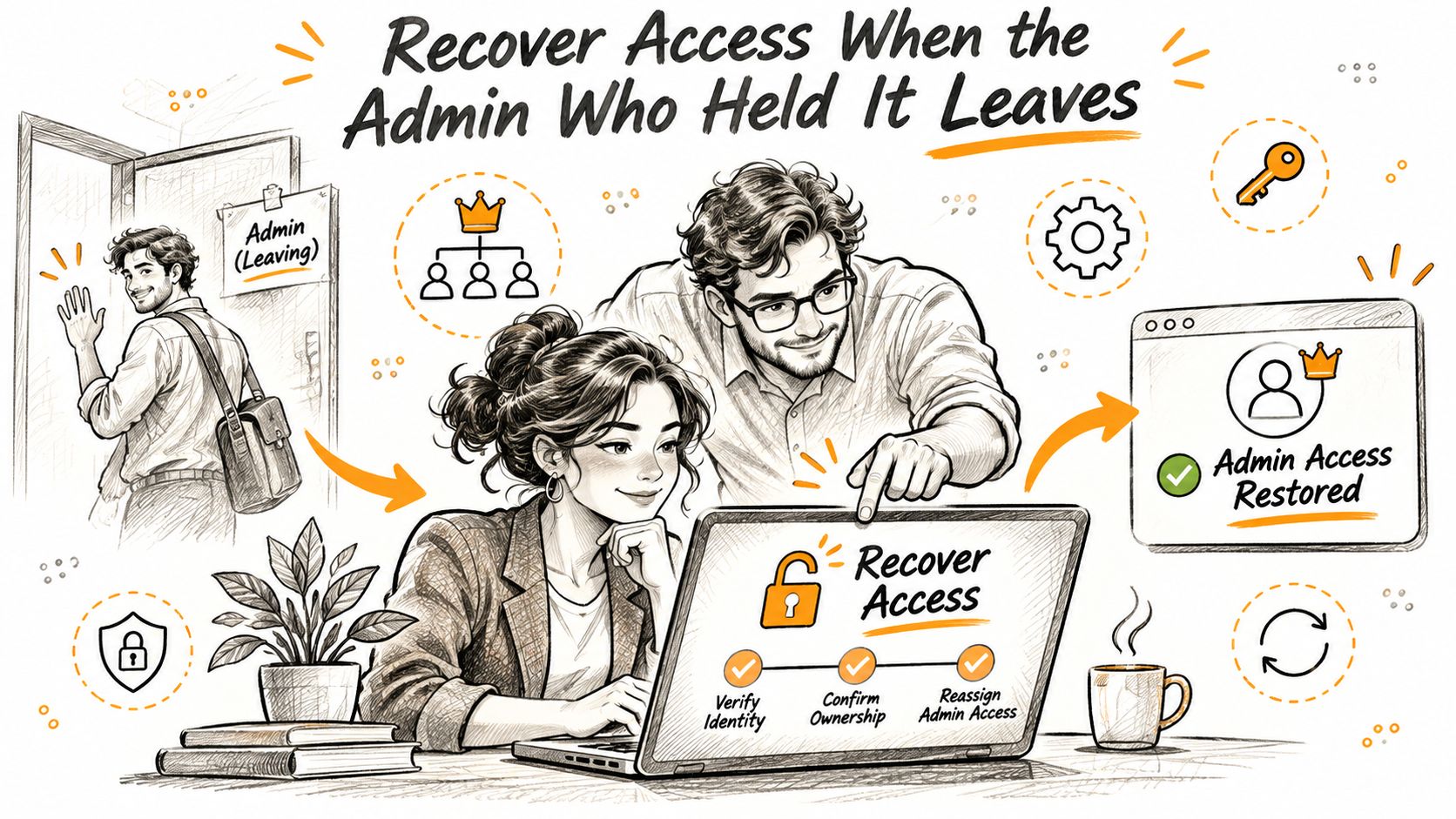
NIST's identity and access management overview describes a graduated approach to identity proofing, enrollment, authentication and federation. Applied to recovery, the principle is straightforward: restoring privileged access demands stronger evidence than knowing an email address.
Run an offboarding sequence
- Confirm the replacement owner. Establish who now holds business authority and which administrator will implement the change.
- Remove the departing person's access. Work through every client site they could reach inside the portal; the agency dashboard is only the first item on that list.
- Transfer business dependencies. Move billing contacts, support-ticket ownership and any recovery destination away from the departing person's email and devices.
- Revoke active sessions. The remaining administrator ends the departing person's sessions and resets any shared credentials. Where a session or device can't be reached directly, open a ticket through the WebinOne Portal's integrated ticketing system; reseller support runs 12/5.
- Record the change. Log the date, person, reason, approving owner and completed actions.
Schedule removal for the departure date itself. Waiting for the next routine permissions review leaves a window in which a former employee still holds live access. Keep the required business records, and make sure access transfers to the named replacement instead of lingering on the old account.
For an inherited client environment, use the client-site inheritance guide to organize the handover. Agency ownership and client-site ownership both need explicit confirmation.
Test recovery quarterly
Each administrator confirms that their current factor works and that their approved fallback remains available. Test the support route end to end: file a ticket, confirm the response channel, close it. Do this without deliberately locking out the agency, and keep recovery secrets out of shared documents.
Continuity check: A recovery plan is incomplete if the person who must approve recovery is also the person whose account is inaccessible.
Record the test outcome, any unavailable factor and the person responsible for fixing it. Keep a working authenticator enrolled until its replacement is enrolled and verified. If the only device is already lost, the remaining administrator enrols the new factor and files a portal ticket when the account itself is locked. Borrowing a colleague's logged-in session to change ownership blurs accountability for every action taken under it.
Set Up Your Agency Portal Through the Reseller Program
A new client launch can stall when portal access depends on one administrator. The WebinOne Reseller Program gives agencies a white-label platform for managing client sites and operations. The commercial case is repeatability: agencies taking on larger projects need to manage client access without turning every staff change into an owner-level emergency.
The Agency Portal brings templates, sites, development, staff, branding and billing together in one dashboard. WebinOne's team also helps set up the white-label portal and migrate existing sites if needed. See the WebinOne Reseller Program for program details.
The platform runs on AWS across 6 AWS regions, with 99.99% uptime and a 99.95% availability commitment in the published SLA. Platform availability supports continuity, while account recovery still depends on having a workable route to regain access.
Partner and Partner Agency members get one free website on the highest plan for their agency's own business website. It is not intended for use as an Ecommerce shop. Once the site is ready, the reseller submits a support request; the WebinOne team reviews it and activates the free plan.
Set up the portal around the agency's actual client work: decide which sites belong in the white-label environment, how existing sites will be migrated, and whether the free agency website fits the intended use. That gives the setup a clear operational purpose before the first client team signs in.